





CP-SWEEP BORA works without an app and does not require an Internet connection. Its own Wi-Fi network remains available for direct access to the control interface. Home Wi-Fi is mainly useful when you want to use time-based scheduling.
Before you start
Two points prevent most connection issues.
If your phone shows “no Internet access”, choose to stay connected to the CP-SWEEP network. If the page does not open, temporarily disable 4G/5G mobile data.
Setup is done from a web browser on a phone, tablet or computer.
CP-SWEEP creates its own Wi-Fi network for direct access to the controller.
It becomes necessary if you want synchronized time for scheduling.
Quick AP mode connection
Direct connection to CP-SWEEP, without an app.
Power on CP-SWEEP BORA
Wait about 20 to 30 seconds for the controller Wi-Fi network to appear.
Connect to the CP-SWEEP network
In your device Wi-Fi settings, choose CP-SWEEP-XXXXXX. The suffix corresponds to the controller’s internal identifier.
Enter the password
Use 123456789.
Open the control interface
In the browser, enter http://192.168.4.1. On iPhone, make sure you enter the full address including http://.
Home Wi-Fi and scheduling
Connecting to your home network allows the controller to synchronize the time, among other things.
Optional STA connection
From the CP-SWEEP interface, open the Wi-Fi page, scan for networks, select your 2,4 GHzhome 2.4 GHz network, then click Save & Connect.
Why connect CP-SWEEP to home Wi-Fi?
Scheduling needs a valid clock. After connecting, allow about 30 to 60 seconds for CP-SWEEP to synchronize the time.
Day / night schedule
You can create several segments, for example a fixed position at night and Auto-Sweep during the day, with centre, speed and amplitude adapted to your aquarium.
OTA update
Update the firmware directly from the web interface.
An interruption while the firmware is being written may prevent the controller from restarting normally.
Connect to CP-SWEEP
Use the local CP-SWEEP network or access through your home Wi-Fi if it is already configured.
Open the OTA page
In the interface, click OTA Update, or open /update from the controller address.
Select the .bin file
Choose the firmware supplied by CoralPlast, then start Update. Wait for the procedure to finish before doing anything else.
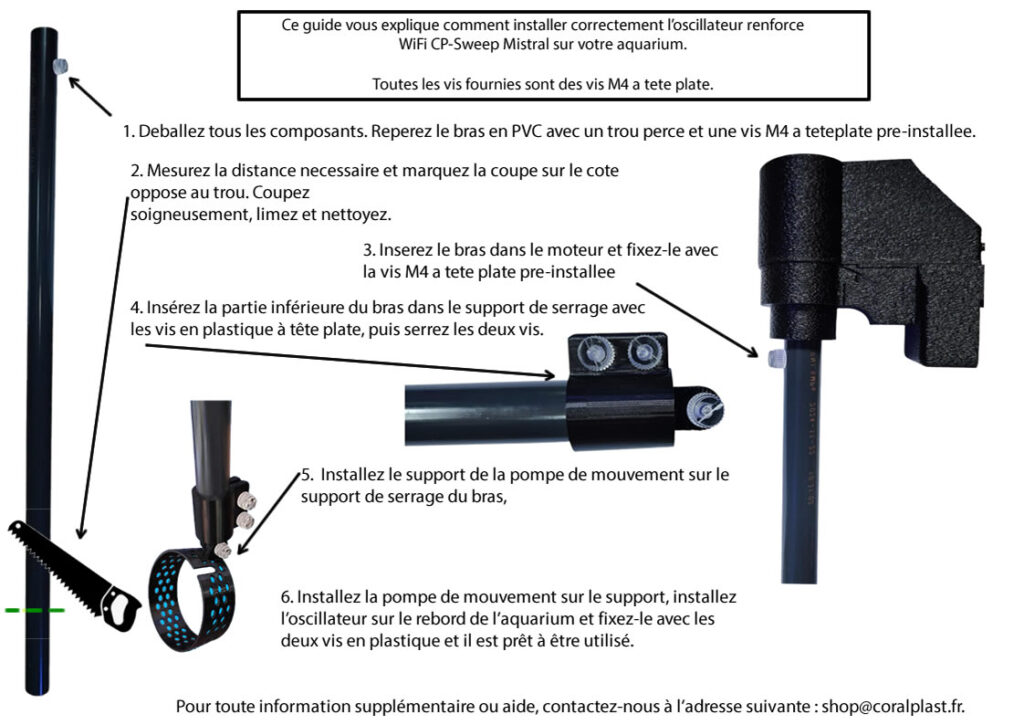
CP-SWEEP Mistral — arm assembly and cutting
Visual reference points for assembly, arm cutting and pump mounting.
For the Mistral version, measure and adjust the arm before final tightening. Do not mechanically force the arm or oscillator shaft.
Installation and setup video
CoralPlast tutorial used in this guide.
Quick troubleshooting
Simple checks before contacting support.
I cannot see the CP-SWEEP Wi-Fi
Check the power, wait at least 30 seconds after switching on, then restart CP-SWEEP if the network still does not appear.
The 192.168.4.1 page does not open
Check that your phone remains connected to the CP-SWEEP network even if it shows “no Internet access”. Temporarily disable mobile data and open http://192.168.4.1.
The schedule is not applied
Check that CP-SWEEP is connected to home Wi-Fi, has had time to synchronize the clock, and that the schedule is enabled.
The controller is connected to home Wi-Fi but the time looks wrong
After connecting to the home network, allow 30 to 60 seconds for synchronization, then reload the interface.
Checklist before use
One final quick check.
Check
- The CP-SWEEP-XXXXXX network is visible.
- Password 123456789 is being used.
- The interface opens at http://192.168.4.1.
- Home Wi-Fi is connected if you use scheduling.
Avoid
- Cutting the power during an OTA update.
- Using scheduling without synchronized time.
- Mechanically forcing the oscillator arm.
- Leaving the CP-SWEEP Wi-Fi because the phone reports no Internet.
Need personalised help?
Tell us the exact model, describe the behaviour you observe and, if possible, attach a photo or short video of the installation. This helps identify the issue much faster.